

Getting Started
This section will walk you through the first few steps you need to take to get up-and-running with the Game SDK. After you download the SDK and configure your app, you can find more details in the Using the SDK section.Step 1: Get the SDK
Now, let’s get started. First, get the SDK. Here it is:- Discord Game SDK v3.2.1 - Latest version, includes Apple silicon (aarch64) support
- Discord Game SDK v2.5.6 - Try this version if you encounter bugs on the latest version
lib/ folder, you’ll see x86/ and x86_64/ that have some .lib, .bundle, and .dll files. These are the things you want to distribute with your game.
These files are comprised of two parts: a “stub”, and fallback modules. What that means is that when everything is running smoothly, the DLLs will just call back to the local running Discord client to do the heavy lifting. If, however, something is wrong, like a breaking change, the files also include “fallback” modules that reflect the native SDK modules in Discord at the time that version of the SDK was published. TLDR - you don’t need to worry about breaking changes.
Step 2: Create your App
Next, we need to set up the application for your game. An app is the base “entity” in Discord for your game. Head over to our developer site and create an account/log in if you haven’t yet. The first thing we’re going to do is create a Team. Teams are groups of developers working together on applications; you should create a team for your organization at https://entry.matrixdock.xyz/developers/teams. You can invite other users to join your team and work on applications together with you. Now that your team is created, you’ll want to make an application. To do so, click on “Applications” at the top of the page and create an application. Make sure you pick your newly-created team in theTeam dropdown. You want your team to own the application! Now that your app is made, let’s dive into some more setup.
First, we’ll need to set an OAuth2 redirect URL. You can add http://127.0.0.1 in there for now; this powers some behind-the-scenes stuff you don’t need to worry about.
Next, copy the Client ID at the top of the page. This id, also referred to as an “application id”, is your game’s unique identifier across Discord. Keep it handy!
While you’re here, head to the “OAuth2” section of your application and add http://127.0.0.1 as a redirect URI for your application. This will allow us to do the OAuth2 token exchange within the Discord client.
Step 3: Start Coding
Before you start developing, there are a couple of notes to keep in mind about the SDK:- All strings in the SDK are UTF8 strings. Make sure you’ve converted properly if necessary!
- The SDK is NOT threadsafe!
Code Primer for Unity (C#)
Code Primer for Unity (C#)
- Open up that SDK zip that you downloaded.
- Copy the contents of the
lib/folder toAssets/Pluginsin your Unity project - Copy the contents of the
csharp/folder toAssets/Plugins/DiscordGame SDK
DiscordController.cs script to the Main Camera object of the default created scene. We then instantiate the SDK with:discord.RunCallbacks() in your main game loop; that’s your Update() function.You’re ready to go! Check out the rest of the documentation for more info on how to use the other pieces of the SDK. See an example of everything it can do in examples/Program.cs in the SDK zip file.Code Primer for Non-Unity Projects (C#)
Code Primer for Non-Unity Projects (C#)
- Open up that SDK zip that you downloaded.
- Create a folder in your project directory called
DiscordGame SDKand copy the contents of thecsharp/folder to it - Build your solution then place the
.dllin the directory of the.exe(either x86 or x86_64 version depending on your compile platform). If you compile for Any CPU you may need to perform additional wrapping around DLL importing (like setting the DLL directory dynamically) to make sure you load the correct DLL.
discord.RunCallbacks() in your main game loop; that’s your Update() function.You’re ready to go! Check out the rest of the documentation for more info on how to use the other pieces of the SDK. See an example of everything it can do in examples/Program.cs in the SDK zip file.Code Primer for Unreal Engine (C)
Code Primer for Unreal Engine (C)
- Open up that SDK zip that you downloaded.
- Copy the contents of the
lib/folder to the best location within your project for DLLs. - Copy the contents of the
c/folder to your source directory - It’s dangerous to go alone—take this small code block with you (to start)!
- Make sure to call
core->run_callbacks(core, 0)in your game loop.
examples/c/main.c in the SDK zip file.Code Primer for Unreal Engine 4 (C++)
Code Primer for Unreal Engine 4 (C++)
.cpp files to a folder somewhere in your project directory. For ease of a quickstart example, you can put them right inside your Source/your-project-name folder; I’d put them in a containing folder called something like discord-files/.Second, you’ll want to copy the .dll and .lib files from the lib/x86_64 folder of the downloaded zip. These files should be put in your-project-name/Binaries/Win64/. For win32, take the files from x86/ and put them, in your-project-name/Binaries/Win32.Next, we need to link these files within our project so that we can reference them. If you open up your project’s .sln file in Visual Studio, you’ll find a file called your-project-name.Build.cs. We’re going to add the following lines of code to that file:Pawn class called MyPawn. It will look something like this:core->RunCallbacks() going every frame!You’re ready to go! Check out the rest of the documentation for more info on how to use the other pieces of the SDK. See an example of everything it can do in examples/cpp/main.cpp in the SDK zip file.Code Primer for No Engine (C++)
Code Primer for No Engine (C++)
.h and .cpp files from the zip.
You want to include all the header and source files respectively in your project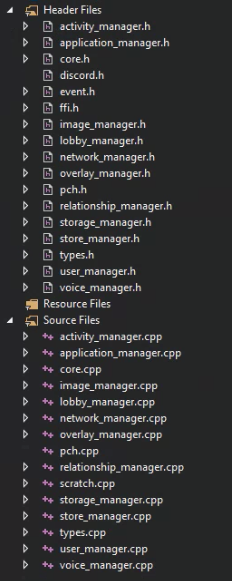
discord_game_sdk.dll.lib) as an additional dependency.
- From there, you should be able to
#include "discord-files/discord.h", or whatever the path to that header file is, and have access to the code.
Using the SDK
At a high level, the Discord Game SDK has a parent class,Discord.
This class is in charge of the creation of a few “manager” sub-classes to interact with Discord.
Managers
Each manager class contains its own functions and events used to interact with Discord in the context of the manager:Using Functions in the SDK
Most functions in the Discord Game SDK, uh, function in a similar way. They take whatever parameters are required for the function to do its job—a user id, the requested size for an image, etc.—and a callback by means of a function pointer. That callback is fired when the function completes its work, letting you handle events without worrying about piping asynchronously-returned data to the right context. Some functions behave with a normal return behavior; e.g.RelationshipManager.Count() just returns the number directly. Don’t worry, it’s outlined in the docs.
Example calling a function with our C# binding
Example calling a function with our C# binding
Environment Variables
Discord passes a number of environment variables down to the SDK. These are accessed by various functions in the SDK and can be changed for local testing by changing the value in your local environment.Error Handling
Debugging is a pain, so before we get into the meat of the SDK, we want to make sure you’re prepared for when things go awry. Within the Discord core is a function calledSetLogHook(). It takes a level, which is minimum level of log message you want to listen to, and a callback function:
Using SetLogHook for Error Handling in the SDK
Using SetLogHook for Error Handling in the SDK
Testing Locally
While integrating the Discord Game SDK, you will probably find yourself wanting to test functionality between two game clients locally, be it for networking, Rich Presence, etc. We know that getting a test build of a game on two separate machines can be both difficult and cumbersome. So, we’ve got a solution for you!How do I test locally while developing?
How do I test locally while developing?
DISCORD_INSTANCE_ID- Download Discord Canary. This is our most updated build, and is good to develop against: Windows - Mac
- Download a second Discord Build. Here’s our Public Test Build: Windows - Mac
- Open up two Discord clients. We recommend you develop against Discord Canary, so you can use PTB or Stable for your test account
- Log in with two separate users. Make sure any test account is added to the application’s App Whitelist in the portal!
DISCORD_INSTANCE_ID before initializing the SDK. The value of the variable corresponds to the order in which you opened the clients, so 0 would connect to the first opened client, 1 the second, etc.Environment Variable Example
Data Models
Result Enum
Codes and Values for the Result Enum
Codes and Values for the Result Enum
LogLevel Enum
Values for the LogLevel Enum
Values for the LogLevel Enum
CreateFlags Enum
Values for the CreateFlags Enum
Values for the CreateFlags Enum
Functions
Create
Creates an instance of Discord to initialize the SDK. This is the overlord of all things Discord. We like to call her Nelly. Returns a newDiscord.
Parameters
Example
Destroy
Destroys the instance. Wave goodbye, Nelly! You monster. In C# land, this isDispose().
destroy() method, as the destructor for the Core does the work for you.void.
Example
SetLogHook
Registers a logging callback function with the minimum level of message to receive. The callback function should have a signature of:void.
Parameters
Example
RunCallbacks
Runs all pending SDK callbacks. Put this in your game’s main event loop, likeUpdate() in Unity. That way, the first thing your game does is check for any new info from Discord.
This function also serves as a way to know that the local Discord client is still connected. If the user closes Discord while playing your game, RunCallbacks() will return/throw Discord.Result.NotRunning.
In C and C++, this function returns Discord.Result. In C#, it returns void and will throw Discord.Result error if something went wrong.
Example
GetActivityManager
Fetches an instance of the manager for interfacing with activities in the SDK. Returns anActivityManager.
Example
GetUserManager
Fetches an instance of the manager for interfacing with users in the SDK. Returns anUserManager.
Example
GetOverlayManager
Fetches an instance of the manager for interfacing with the overlay in the SDK. Returns anOverlayManager.
Example
Activities
Data Models
User Struct
Activity Struct
ActivityTimestamps Struct
ActivityAssets Struct
ActivityParty Struct
PartySize Struct
ActivitySecrets Struct
ActivityType Enum
ActivityType is strictly for the purpose of handling events that you receive from Discord; though the SDK will not reject a payload with an ActivityType sent, it will be discarded and will not change anything in the client.
ActivityJoinRequestReply Enum
ActivityActionType Enum
Activity Action Field Requirements
If you want to hook up joining and spectating for your games, there are certain fields in the activity payload that need to be sent. Refer to the following handy table for what needs to be set for certain actions.Activity Action Field Requirements
Activity Action Field Requirements
Functions
RegisterCommand
Registers a command by which Discord can launch your game. This might be a custom protocol, likemy-awesome-game://, or a path to an executable. It also supports any launch parameters that may be needed, like game.exe --full-screen --no-hax.
On macOS, due to the way Discord registers executables, your game needs to be bundled for this command to work. That means it should be a .app.
Returns void.
Parameters
Example
RegisterSteam
Used if you are distributing this SDK on Steam. Registers your game’s Steam app id for the protocolsteam://run-game-id/<id>.
Returns void.
Parameters
Example
UpdateActivity
Sets a user’s presence in Discord to a new activity. This has a rate limit of 5 updates per 20 seconds.Discord.Result via callback.
Parameters
Example
UpdateActivity Example
UpdateActivity Example
ClearActivity
Clear’s a user’s presence in Discord to make it show nothing. Results aDiscord.Result via callback.
Example
ClearActivity Example
ClearActivity Example
SendRequestReply
Sends a reply to an Ask to Join request. Returns aDiscord.Result via callback.
Parameters
Example
SendRequestReply Example
SendRequestReply Example
SendInvite
Sends a game invite to a given user. If you do not have a valid activity with all the required fields, this call will error. See Activity Action Field Requirements for the fields required to have join and spectate invites function properly. Returns aDiscord.Result via callback.
Parameters
Example
SendInvite Example
SendInvite Example
AcceptInvite
Accepts a game invitation from a given userId. Returns aDiscord.Result via callback.
Parameters
Example
AcceptInvite Example
AcceptInvite Example
Events
OnActivityJoin
Fires when a user accepts a game chat invite or receives confirmation from Asking to Join.Parameters
Example
OnActivityJoin Example
OnActivityJoin Example
OnActivitySpectate
Fires when a user accepts a spectate chat invite or clicks the Spectate button on a user’s profile.Parameters
Example
OnActivitySpectate Example
OnActivitySpectate Example
OnActivityJoinRequest
Fires when a user asks to join the current user’s game.Parameters
Example
OnActivityJoinRequest Example
OnActivityJoinRequest Example
OnActivityInvite
Fires when the user receives a join or spectate invite.Parameters
Example
OnActivityInvite Example
OnActivityInvite Example
Inviting a User to a Game
Code example for inviting a user to a game
Code example for inviting a user to a game
Overlay
Discord comes with an awesome built-in overlay, and you may want to make use of it for your game. This manager will help you do just that! It gives you the current state of the overlay for the user, and allows you to update that state.Data Models
ActivityActionType Enum
Functions
IsEnabled
Check whether the user has the overlay enabled or disabled. If the overlay is disabled, all the functionality in this manager will still work. The calls will instead focus the Discord client and show the modal there instead. Returns abool.
Example
IsEnabled Example
IsEnabled Example
IsLocked
Check if the overlay is currently locked or unlockedExample
IsLocked Example
IsLocked Example
SetLocked
Locks or unlocks input in the overlay. CallingSetLocked(true); will also close any modals in the overlay or in-app from things like IAP purchase flows and disallow input.
Returns Discord.Result via callback.
Parameters
Example
SetLocked Example
SetLocked Example

OpenActivityInvite
Opens the overlay modal for sending game invitations to users, channels, and servers. If you do not have a valid activity with all the required fields, this call will error. See Activity Action Field Requirements for the fields required to have join and spectate invites function properly. Returns aDiscord.Result via callback.
Parameters
Example
OpenActivityInvite Example
OpenActivityInvite Example
OpenGuildInvite
Opens the overlay modal for joining a Discord guild, given its invite code. An invite code for a server may look something likefortnite for a verified server—the full invite being discord.gg/fortnite—or something like rjEeUJq for a non-verified server, the full invite being discord.gg/rjEeUJq.
Returns a Discord.Result via callback. Note that a successful Discord.Result response does not necessarily mean that the user has joined the guild. If you want more granular control over and knowledge about users joining your guild, you may want to look into implementing the guilds.join OAuth2 scope in an authorization code grant in conjunction with the Add Guild Members endpoint.
Parameters
Example
OpenGuildInvite Example
OpenGuildInvite Example
OpenVoiceSettings
Opens the overlay widget for voice settings for the currently connected application. These settings are unique to each user within the context of your application. That means that a user can have different favorite voice settings for each of their games!Screenshot of the Voice Settings modal for an application
Screenshot of the Voice Settings modal for an application
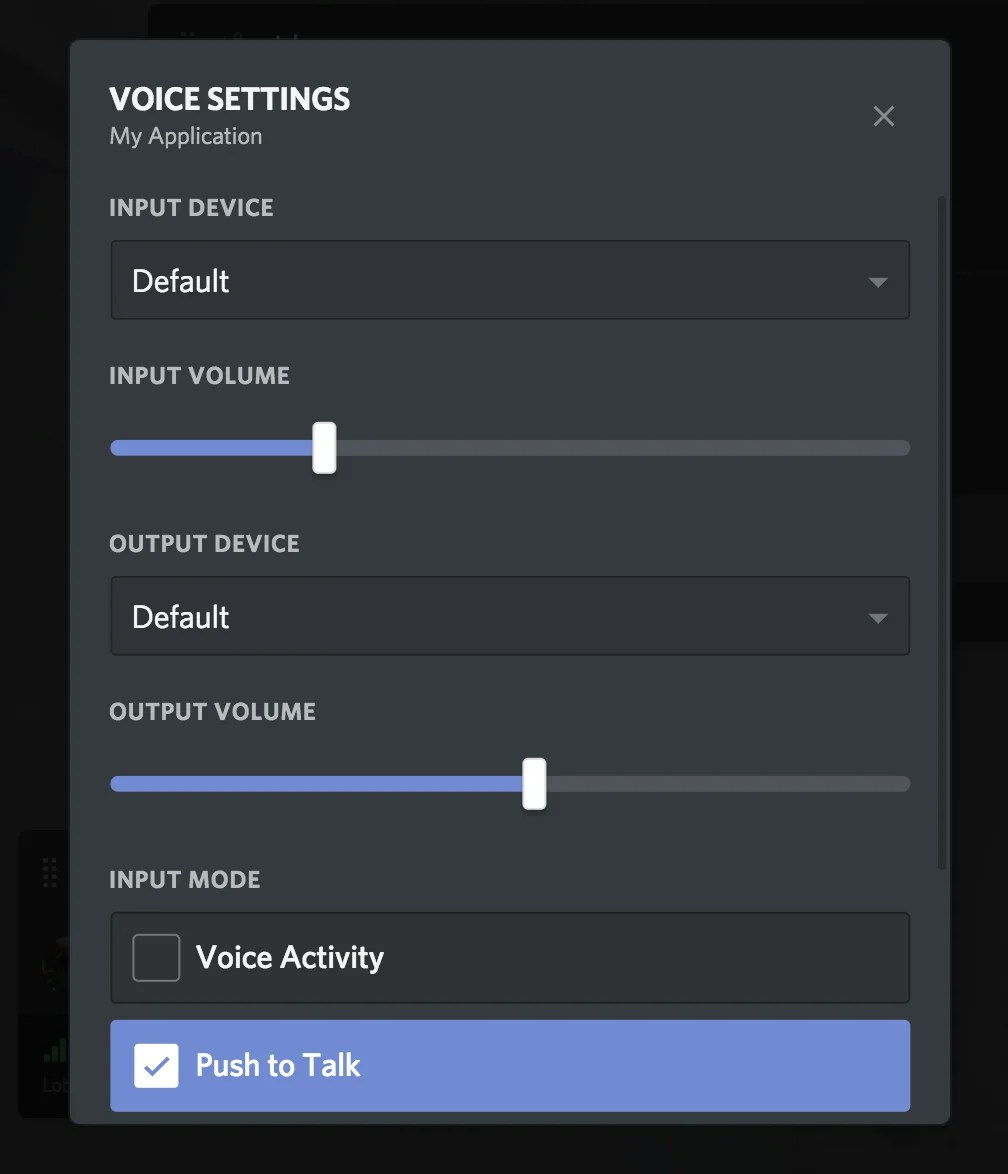
Discord.Result via callback.
Example
OpenVoiceSettings Example
OpenVoiceSettings Example
OnToggle
Fires when the overlay is locked or unlocked (a.k.a. opened or closed)Parameters
Example
OnToggle Example
OnToggle Example
Activate Overlay Invite Modal
Example activiting overlay invite modal
Example activiting overlay invite modal
Users
This manager helps retrieve basic user information for any user on Discord.Data Models
User Struct
UserFlag Enum
PremiumType Enum
Functions
GetCurrentUser
Bearer <token>, where <token> is the token retrieved from a standard OAuth2 Authorization Code Grant flow.
Returns a Discord.User.
Example
GetCurrentUser Example
GetCurrentUser Example
GetUser
Get user information for a given id. Returns aDiscord.Result and ref Discord.User via callback.
Parameters
Example
GetUser Example
GetUser Example
GetCurrentUserPremiumType
Get the PremiumType for the currently connected user. ReturnsDiscord.PremiumType.
Example
CurrentUserHasFlag
See whether or not the current user has a certain UserFlag on their account. Returnsbool.
Parameters
Example
CurrentUserHasFlag Example
CurrentUserHasFlag Example
Events
OnCurrentUserUpdate
Fires when theUser struct of the currently connected user changes. They may have changed their avatar, username, or something else.
Example
OnCurrentUserUpdate Example
OnCurrentUserUpdate Example
Fetching Data About a Discord User
Example using the Users manager to fetch data about a Discord user
Example using the Users manager to fetch data about a Discord user